Transform Your PDFs into Engaging Videos with AI
Convert static documents into captivating videos with AI-powered narration, animations, and professional visuals. No video editing skills required.
Convert static documents into captivating videos with AI-powered narration, animations, and professional visuals. No video editing skills required.
Everything you need to transform documents into professional video content, powered by advanced AI technology.
Convert text to natural-sounding narration automatically. Choose from hundreds of voice styles across 140+ languages without recording anything yourself.
Automatically detects and preserves charts, graphs, images, and visual elements from your PDF while maintaining the original document flow and hierarchy.
Generate professional MP4 videos ready to share on social media, embed in presentations, upload to YouTube, or distribute to your audience instantly.
Create videos in 140+ languages with localized AI voices. Perfect for global teams, international training, and reaching diverse audiences worldwide.
An honest look at what PDF to video tools can and cannot do—so you can make informed decisions.
Most tools limit uploads to 50-80MB or approximately 80 pages maximum. Very large documents may need to be split into multiple conversions.
Works optimally with clean, text-based documents. Complex layouts with many overlapping elements, handwritten notes, or scanned images may not convert perfectly.
These are converters, not comprehensive video editing suites. Advanced customization like complex animations, transitions, or multi-track editing may be limited.
Getting optimal results may require experimenting with prompts, voice settings, and visual styles. First-time users should expect some trial and error.
Free versions typically limit video length to 3 minutes and may restrict access to premium voices, avatars, and high-resolution exports.
Most PDF to video tools are cloud-based and require a stable internet connection. Offline conversion options are limited or unavailable.
A decision guide to help you determine if PDF to video conversion is right for your project.
From education to enterprise, see how teams transform their documents into engaging video content.

Transform course materials, syllabi, and lecture notes into engaging video lessons for flipped classrooms or online learning platforms.
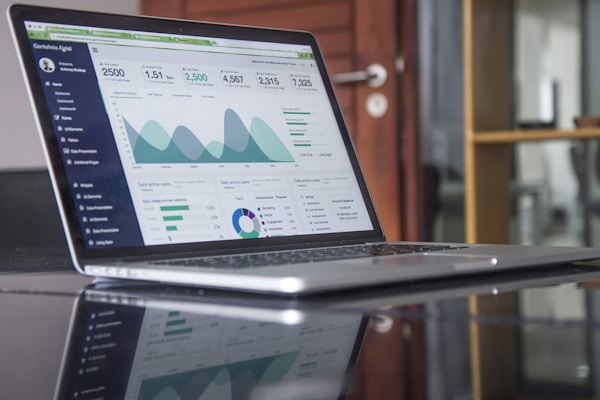
Convert whitepapers, case studies, and reports into shareable social media content that captures attention and drives engagement.
Turn product documentation and spec sheets into explainer videos that help prospects understand your offering faster.
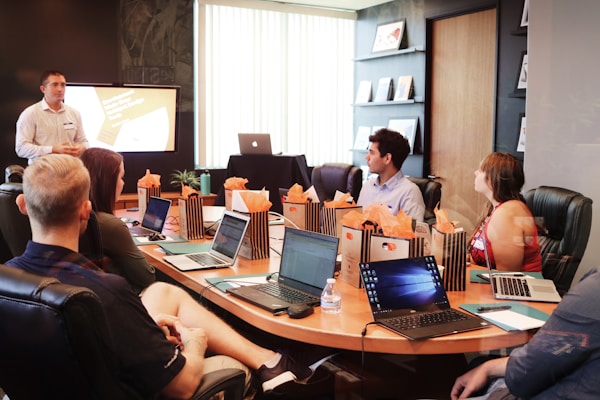
Create onboarding videos and training materials from existing SOPs, policies, and documentation without filming or voice recording.
Transform your PDF into a professional video in five simple steps.
Drag and drop your document or paste text content directly. Most tools support files up to 50-80MB.
Choose your preferred voice, language, pacing, and visual style. Select from templates or start from scratch.
Smart algorithms analyze your content and automatically convert it into narrated video scenes with visuals.
Preview the generated video and make adjustments to timing, visuals, or script as needed.
Download as MP4, generate a shareable link, or publish directly to your preferred platform.
A side-by-side comparison of popular PDF to video converters to help you choose the right one.
| Feature | NoteGPT | Synthesia | Visla | Steve.AI |
|---|---|---|---|---|
| Free Tier | ✅ Yes | ✅ Yes (3 min) | ✅ Yes | ✅ Limited |
| Max Pages | 80 pages | Unlimited* | Unlimited* | N/A (paste) |
| AI Avatars | ❌ No | ✅ 240+ | ❌ No | ✅ Yes |
| Languages | Limited | 140+ | 30+ | 100+ |
| Voice Cloning | ❌ No | ✅ Yes | ✅ Yes | ❌ No |
| Direct PDF Upload | ✅ Yes | ✅ Yes | ✅ Yes | ❌ Paste only |
| No Watermark (Free) | ✅ Yes | ⚠️ Limited | ⚠️ Limited | ❌ No |
*With file size limits. Data as of January 2026.
A PDF to video converter is an AI-powered tool that transforms static PDF documents into dynamic video content. It automatically extracts text, images, and structure from your PDF, then generates a narrated video with visuals, voiceover, and sometimes animations. This technology enables anyone to create professional video content from existing documents without video editing skills or expensive production equipment.
Converting a PDF to video online is straightforward:
1. Choose a PDF to video tool (NoteGPT, Synthesia, Visla, etc.)
2. Upload your PDF file or paste your content
3. Select voice, language, and visual style preferences
4. Let the AI generate your video (usually 2-5 minutes)
5. Review, edit if needed, and download as MP4
Most tools offer free tiers so you can test the process before committing to a paid plan.
Yes, most PDF to video tools offer free tiers with basic functionality. However, free versions typically have limitations: video length caps (usually 3 minutes), restricted voice options, limited exports per month, or watermarks. For longer videos, premium voices, or commercial use, paid plans range from $10-$50/month depending on the tool and features required.
Absolutely. AI voiceover is a core feature of PDF to video converters. These tools use text-to-speech technology to automatically narrate your document content. You can typically choose from hundreds of voices in 100+ languages, adjust speaking speed, and some tools even offer voice cloning to use your own voice. The AI reads your text naturally, including proper pronunciation of technical terms and multiple language support.
The standard export format is MP4, which is universally compatible with all video platforms and devices. Some tools also support WebM for web optimization. Most converters offer resolution options from 720p to 1080p (or 4K on premium plans) and aspect ratio choices including 16:9 (landscape for YouTube), 9:16 (vertical for TikTok/Reels), and 1:1 (square for Instagram).
Most PDF to video conversions complete in 2-5 minutes for standard documents. The actual time depends on document length, complexity, and the tool's processing capacity. A 10-page presentation typically converts in under 3 minutes, while longer documents (50+ pages) may take 10-15 minutes. Cloud-based tools handle the processing, so your computer's specs don't affect conversion speed.
Yes, most PDF to video tools include basic editing capabilities post-conversion. You can typically adjust timing between scenes, modify the AI-generated script, swap visuals, change voice settings, and rearrange sections. However, these are not full-featured video editors—for advanced effects, complex transitions, or multi-track editing, you'd need to export the video and use dedicated software like Adobe Premiere or DaVinci Resolve.
Key limitations to be aware of:
• File size caps: Typically 50-80MB or 80 pages maximum
• Complex layouts: Documents with overlapping elements or handwritten text may not convert well
• Free tier restrictions: Usually limited to 3-minute videos
• Limited customization: Not as flexible as professional video editors
• Internet required: Cloud-based processing means no offline use
• Learning curve: Optimal results require experimenting with settings
PDF to video may not be the best choice when:
• You need precise frame-by-frame control over animations and timing
• Your document has complex visual layouts that don't translate well to video
• You require videos longer than 10 minutes without a significant budget
• You need real human presenters or live-action footage
• Your content requires highly specific branding beyond template options
• You're working with scanned documents or handwritten notes
In these cases, consider professional video production or screen recording tools instead.
Maximum file sizes vary by tool: Synthesia allows up to 50MB on free tier, NoteGPT supports up to 80 pages, and Visla has flexible limits based on your plan. For larger documents, consider splitting them into multiple parts or compressing images within the PDF before upload. Most tools also support pasting text directly if file upload limits are a concern.
Start converting your documents into engaging video content today. No video editing experience required.
Get Started Free